Getting started with Keepy
Set up Keepy in a minute, add your first food with a barcode and a date, and let Today and one daily reminder do the remembering.

KeepyWritten and checked by the Keepy team · 4 min read
The short answer
Open Keepy, answer a few quick questions and pick the hour for your daily reminder. Then add food: scan the barcode and point the camera at the date, or pick loose food like eggs or apples from a quick list. Today shows what to eat first. No account needed.
Keepy does one job: it remembers when the food in your kitchen reaches its date, so you can eat it first. This guide takes you from a fresh install to a kitchen Keepy keeps an eye on, in about five minutes.
1. The first minute
The first time you open Keepy, I ask a few short questions: what to call you, who you cook for, how often you shop, and roughly how much food ends up in the bin. Your answers stay on your phone. They help me pick sensible reminder times, and later they let your monthly recap compare your month with how things were before Keepy.
Then you choose the hour for your daily reminder. Pick a moment when you think about food anyway, like just before you plan dinner. You can change it any time in Settings › Reminders & notifications.
2. Add your first food
Tap the green scan button at the bottom right.
- Scan the barcode. I look the product up, so you don't type its name.
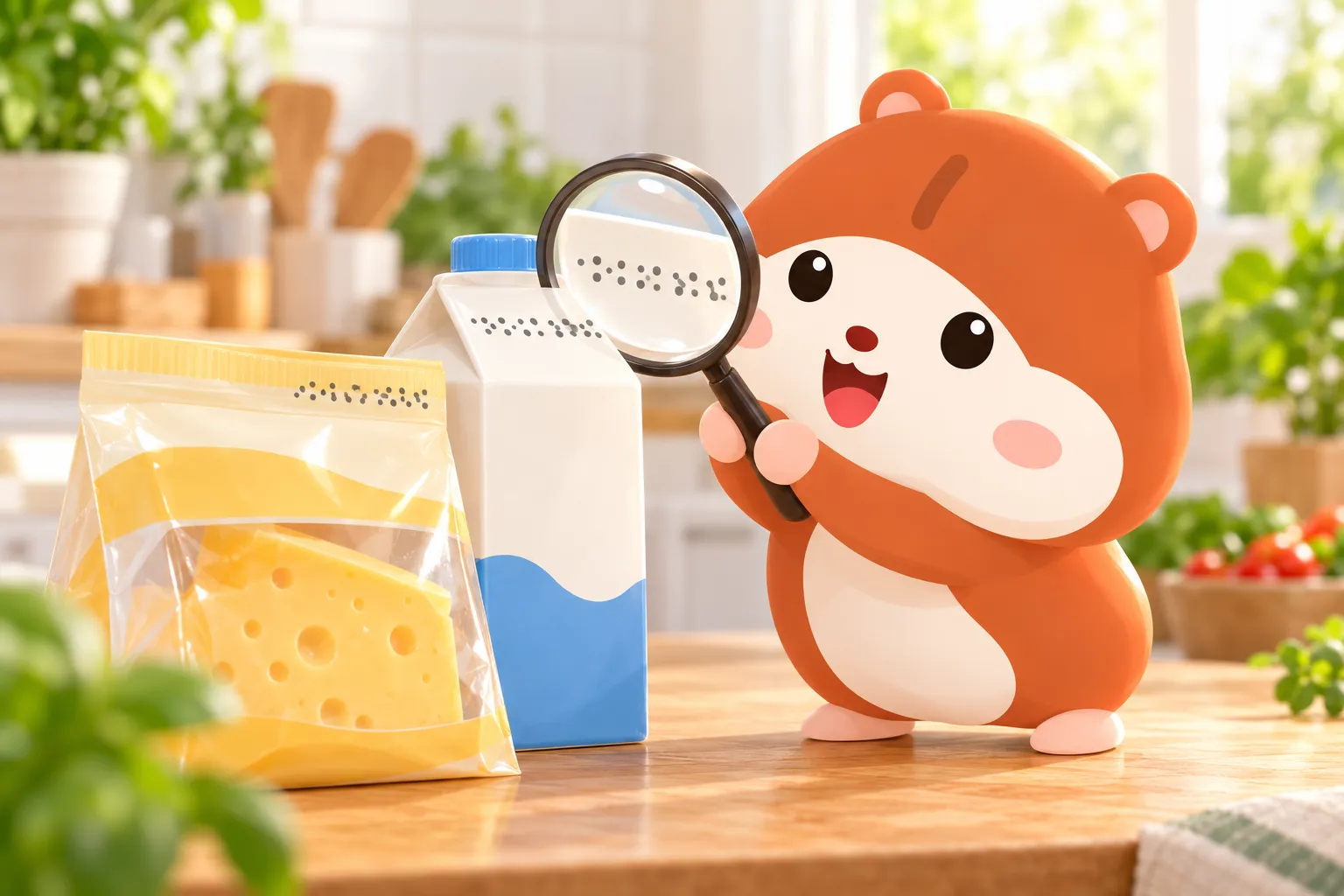
- Point the camera at the date. I read it right on your phone, including small, faded and dot-printed dates. The date never leaves your phone.
- Check and save. The name, the date and the place (Fridge, Freezer, Pantry…) are filled in. Change anything that's wrong, then save.
If I don't know the product, you can snap the front of the pack and an AI reads the name, brand and size, but only if you allow it. Or just type the name: typing is always free. A name the AI read is marked "Read by AI · check it" until you save it.
Already took photos of your shopping? Choose From photos on the scan screen and pick the pictures of the packs. I read them on your phone, and the rest of your library stays untouched.
3. Eat what's closest first
Today is your starting point. Under "Use these soon" you see what reaches its date first, with a coloured tag: red for today, amber for soon, green for later.
When you've eaten something, tap ✓ next to it. I count it, and it moves to Finished. If something did go off, mark it as wasted from its page. I'll ask why, which helps me remind you better next time.
4. Find anything in Items
Items lists everything at home, sorted by date. Filter by place, like Fridge, Freezer or Pantry; there are 12 built-in places to start with. Switch to the calendar to see dates by day, or open Finished to see what you've eaten and used up.
5. One reminder a day
Once a day, at your hour, I send a short summary of what's close to its date. Nothing at night: quiet hours are 21:00 to 07:00 unless you change them. On a day when everything is fine, I stay quiet.
6. See your month
At the start of each month, the recap shows what you ate in time, what slipped through, the things you saved on their very last day, and how the month compares with before. Share it as a picture if you're proud of it.
7. Your data, your choice
- No account needed. Your kitchen stays on your phone.
- Two phones? Sign in with Apple or Google at the top of Settings, and your kitchen syncs. It's free.
- Export or delete everything in Settings › Data & privacy.
Questions
Do I need an account to use Keepy?
No. Keepy works without one. Sign in only if you want the same kitchen on more than one phone, or to keep it safe when you change phones.
What if Keepy can't read the date?
Hold the phone steady, fill the frame with the date and find some light; the flashlight button helps with shiny packs. If it still won't read, tap Type the date. That's free and takes a second.
Does Keepy work offline?
Mostly. Your list, typing items, reading dates and reminders work without a connection. Looking up a new barcode, the AI pack read and sync need the internet.
Which phones does Keepy run on?
Any iPhone with iOS 18 or later, in English or Bahasa Indonesia.